🚨 Stop the Import Chaos 🚨
A Developer’s Guide to Taming Your IDE
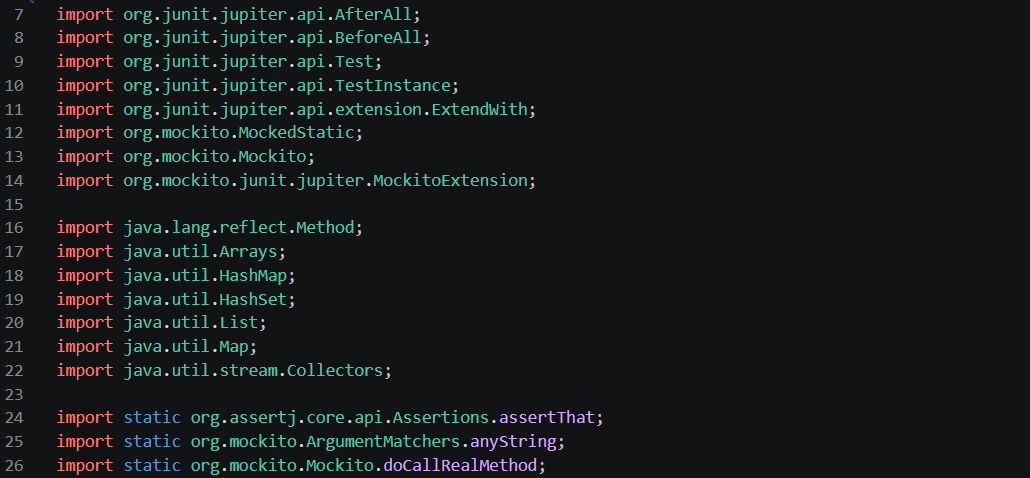
Because nobody wants to review a PR where half the diff is just import reshuffling.
Have you ever proudly submitted a pull request, only for your reviewer to come back with: “Why did all the imports change?” You didn’t touch them. Or did you? Your IDE did. Silently. Ruthlessly. Without asking.
Fear not — In this blog post, I will show you how to configure IntelliJ IDEA and Eclipse so that your imports always follow a clean, consistent, agreed-upon layout across the whole team. One setup, no more import wars. 🕊️
*You can thank me with a coffee here if this helped you saved time for you and your team ! * 😄
📐 The Target Import Layout
This is the structure we all agree on. Tattoo it on your brain:
// ✅ Block 1 — JDK standard libraries
import java.sql.Timestamp;
import java.util.List;
import java.util.Map;

// ✅ Block 2 — Third-party libraries (org.*)
import org.apache.commons.lang3.StringUtils;
import org.apache.commons.lang3.math.NumberUtils;
import com.fasterxml.jackson.databind.ObjectMapper;
import org.springframework.util.CollectionUtils;

// ✅ Block 3 — Internal / company packages (com.*)
import com.archyoshi.db.read.CommonOperations;
import com.archyoshi.db.read.FlatJsonBlob;
import com.archyoshi.db.write.GenericWriteOperation;

// ✅ Block 4 — Static imports (always last)
import static org.assertj.core.api.Assertions.assertThat;
import static org.mockito.ArgumentMatchers.anyString;
import static org.mockito.Mockito.doCallRealMethod;
🧠 IntelliJ IDEA Setup
Step 1 — Open Import Layout Settings
Go to:
Settings (Ctrl + Alt + S / Cmd + ,) → Editor → Code Style → Java → Imports tab
Step 2 — Configure the Import Layout
Scroll down to the Import Layout section and set it up in this exact order. Use the + button to add entries and the blank line button to add separators:
| Order | Entry | Type |
|---|---|---|
| 1 | java. |
Import |
| 2 | javax. |
Import |
| 3 | (blank line) | Separator |
| 4 | org. |
Import |
| 5 | (blank line) | Separator |
| 6 | com. |
Import |
| 7 | (blank line) | Separator |
| 8 | <All other imports> |
Import |
| 9 | (blank line) | Separator |
| 10 | <All static imports> |
Static Import |
Step 3 — Recommended Supporting Settings
Still in the Imports tab, make sure these are configured:
- Class count to use import with ‘*’: Set to a high number like
999to disable wildcard imports. - Names count to use static import with ‘*’: Set to
999as well. - Uncheck “Layout static imports separately” — we handle static placement ourselves via the layout above.
Step 4 — Apply & Run
Hit OK, then run Optimize Imports (Ctrl + Alt + O / Cmd + Option + O) on any file to see the magic. ✨
🌑 Eclipse Setup
Eclipse doesn’t have a native drag-and-drop import layout UI like IntelliJ, but it can be done cleanly via its Code Formatter and Organize Imports settings.
Step 1 — Open Import Order Settings
Go to:
Window → Preferences → Java → Code Style → Organize Imports
Step 2 — Configure the Import Order
You will see an Import Order list. Clear the existing entries and recreate them in this order using the New button:
| Order | Entry |
|---|---|
| 1 | java |
| 2 | javax |
| 3 | org |
| 4 | com |
| 5 | (leave blank for “all others”) |
| 6 | static (tick the Static checkbox on this entry) |
ℹ️ Eclipse automatically adds a blank line between each top-level group — no manual separator needed.
Step 3 — Disable Wildcard Imports
On the same screen, set:
- Number of imports needed for
.*:99 - Number of static imports needed for
.*:99
Step 4 — Apply & Run
Hit Apply and Close, then trigger Organize Imports (Ctrl + Shift + O) on any file to validate.
🤝 Sharing the Config With the Team
Rather than having every developer set this up manually (and inevitably someone getting it wrong), both IDEs support config export:
- IntelliJ:
File→Manage IDE Settings→Export Settings→ select Code Style schemes → share the.zip. - Eclipse:
File→Export→General→Preferences→ select Java Code Style → share the.epf.
Import the file on your end, done. No excuses. 🎯
Don’t hesitate to comment with another subject you would like to see me post about !
If after reading this guide your imports are still scrambled — that’s on you (or your teammates). At least, I tried. 😄